![money-over-50-logo.png]](https://www.mo50.com.au/hs-fs/hubfs/Logo/money-over-50-logo.png?height=50&name=money-over-50-logo.png)
Annature is our new e-signing platform we will be using to replace DocuSign. is very similar to DocuSign and quite user friendly.
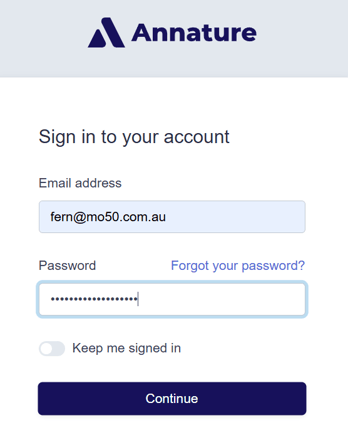
1. Log into Annature with your individual user account.
https://dashboard.annature.com.au/sign-in
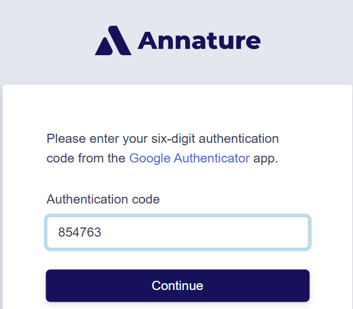
2. Enter your 2FA code through authenticator:
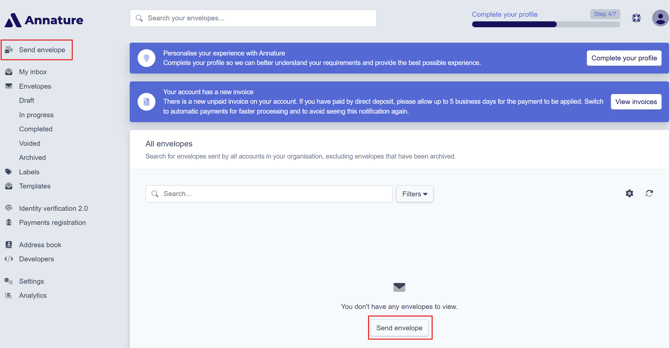
3. The user interface will load. Select send envelope (2 places to select):
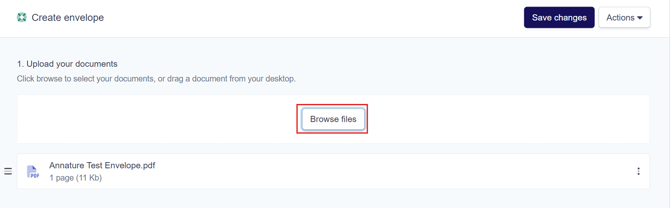
4. Select "Browse files" and attach or drag and drop the files you want to send.
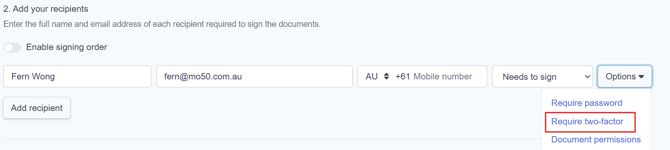
5. Add recipient details (Name and email) and select "Needs to sign". Then under Options, choose "Require two-factor".
We have the option to either use a text message to send a signing link or for 2FA. As we will always use 2FA, we will not enter the clients mobile number. Once you select the option "Require two-factor", you will not be able to enter a mobile number anyway.
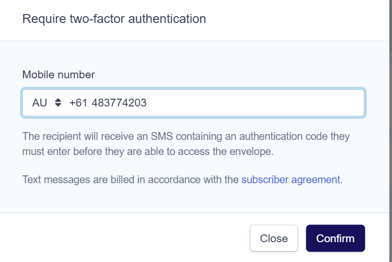
6. Enter the recipients mobile number for 2FA:
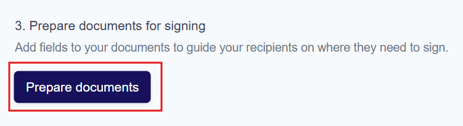
7. Select "Prepare documents".
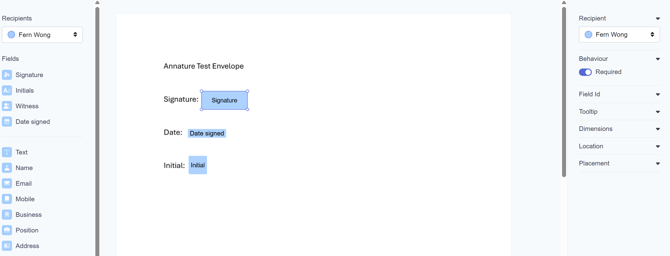
8. You will then be able to add the required fields in.
Note: As far as I can tell from my testing, the fields have to be dragged and dropped to the section of the document you want the field.
9. Add in your message to your recipient:
Note: Ensure that "Share this envelope with all accounts in MO50 group" is always selected. It should be defaulted to Share.
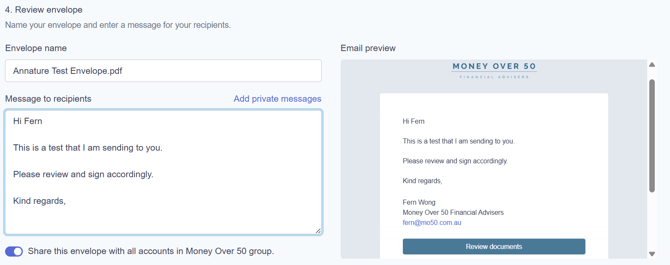
10. Press "Send Envelope".
The envelope will be sent to the email address of the recipient.
When you return back to the main dashboard, the envelope that you have sent will be displayed: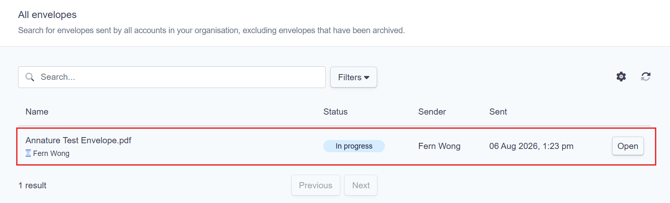
WHAT THE CLIENT RECEIVES:
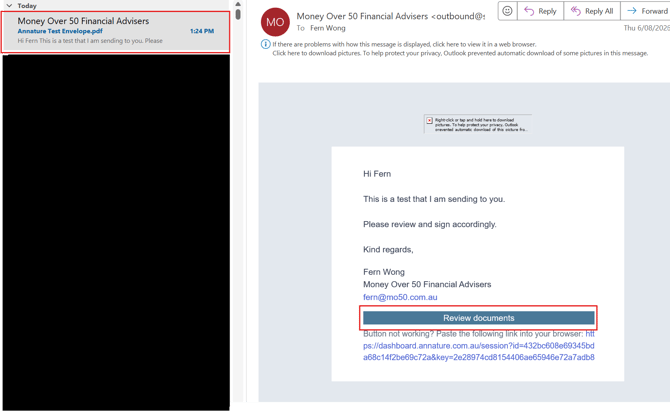
We are able to set it up so that our company name will be displayed as the sender rather than "Annature" (this should be set up for you when you set your account up).
The client then selects "Review documents"
The client will need to select "Send code"
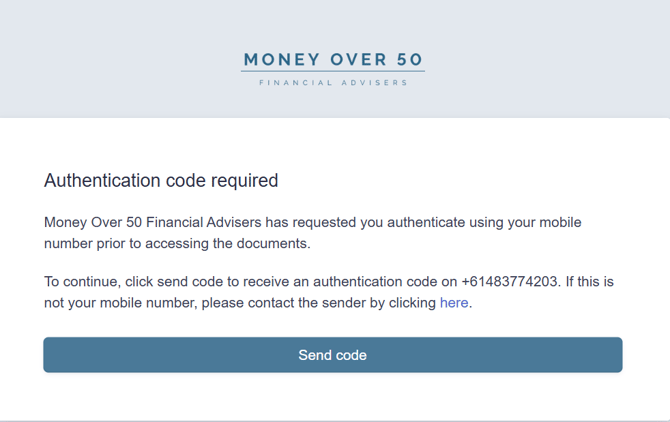
The client can then enter the authentication code and proceed. Note: The code will be sent to them from Annature.
The document will then open with your message and the client can select "Review document". It should display with our own branding and logo instead of Annature's.
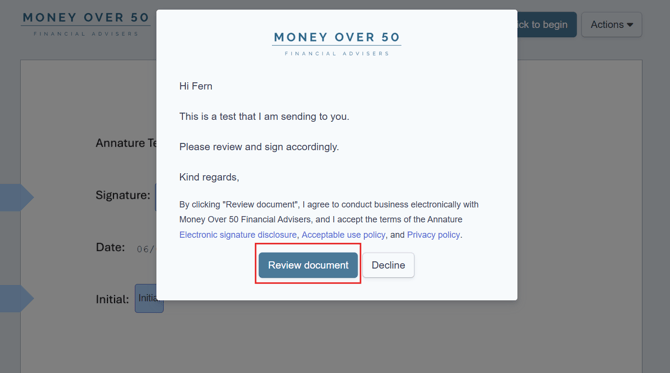
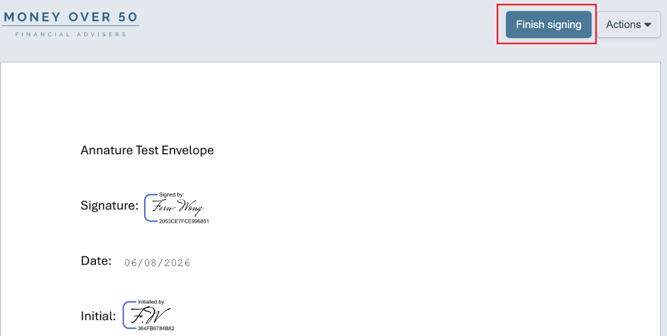
Once the client signs in the designated fields, they can select "Finish signing" at the top or at the very bottom of the page.
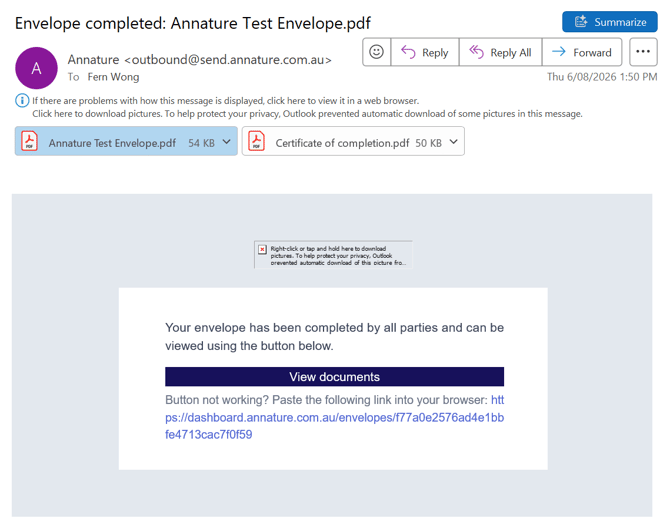
We will receive a confirmation email that the envelope has been signed by the recipient.
In the Annature dashboard, the envelope will also update to Completed:
You can then select "Open" and download the documents:
1. Envelope actions
2. Download documents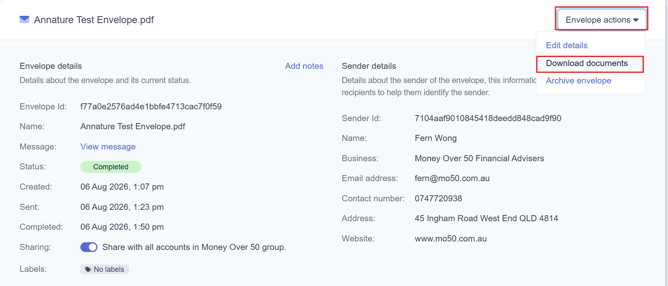
You can then download the documents and they will be downloaded as a zip file. You can then save the file accordingly.