![money-over-50-logo.png]](https://www.mo50.com.au/hs-fs/hubfs/Logo/money-over-50-logo.png?height=50&name=money-over-50-logo.png)
When you receive a request to action a lump sum commutation, we can follow the below steps to process and manage the transaction.
1. Log in to Edge and enter the client's name in the "Client search" bar in the top right hand corner.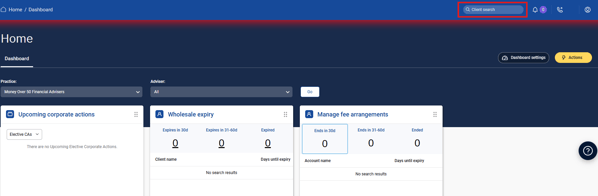
2. Enter the client's name and search for the client.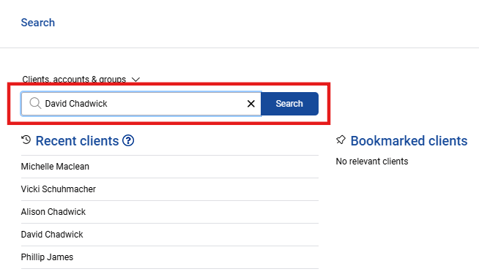
3. Click on the yellow "Actions" button in the top right hand corner. This is the "wizard".
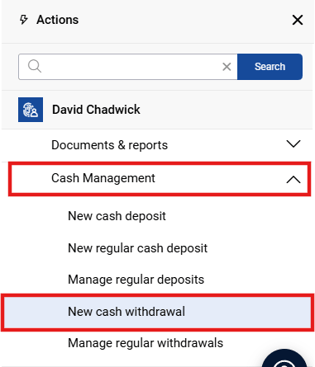
4. Under Actions, select "Cash Management" and then select the "New cash withdrawal" drop down.
Note that the wizard can be slow to load. Click refresh if it is not loading.
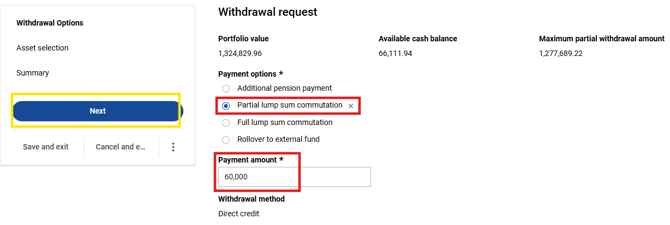
5. Select "Partial lump sum commutation", enter the Payment amount (the amount specified by the adviser to withdraw) and then select "NEXT".
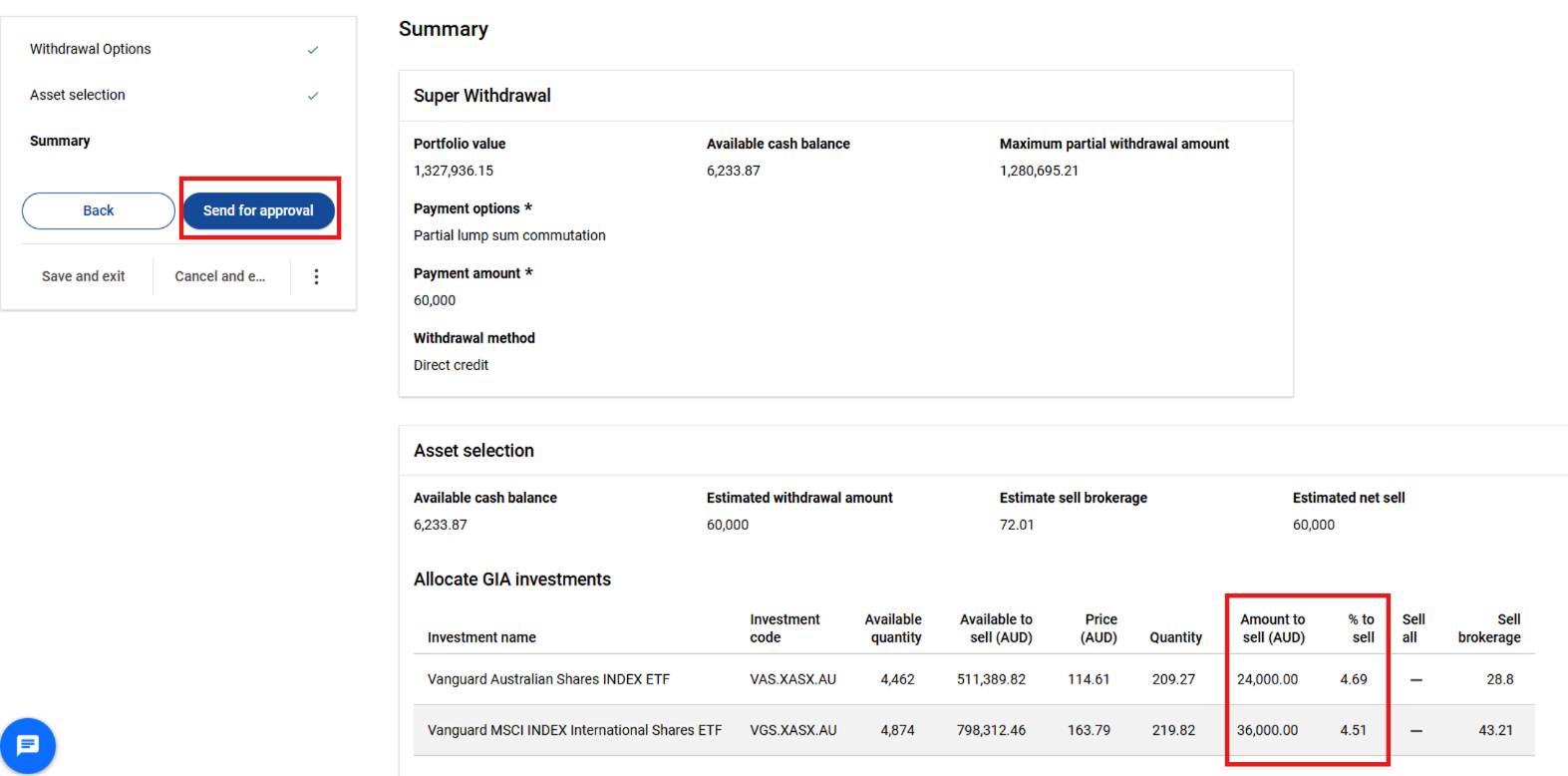
6. Enter in the respective amounts to sell (the adviser will advise these amounts) and select send for approval. Snip the below into your task to show the correct Payment options, Payment amount, Amounts to sell (AUD)/% to sell.
7. You will then receive the below message. Snip this confirmation into the task and update the notes to confirm that the withdrawal request has been processed.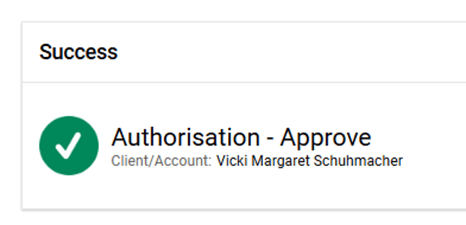
8. Update your task and set a follow up for 3-5 business days (T+3).